
SSD with SSD Enclosure is a cost-efficient external storage solution. It has become popular among professionals. This guide explores the intricacies of various enclosure types, installation methods, and best practices.
Introduction to SSD Enclosures
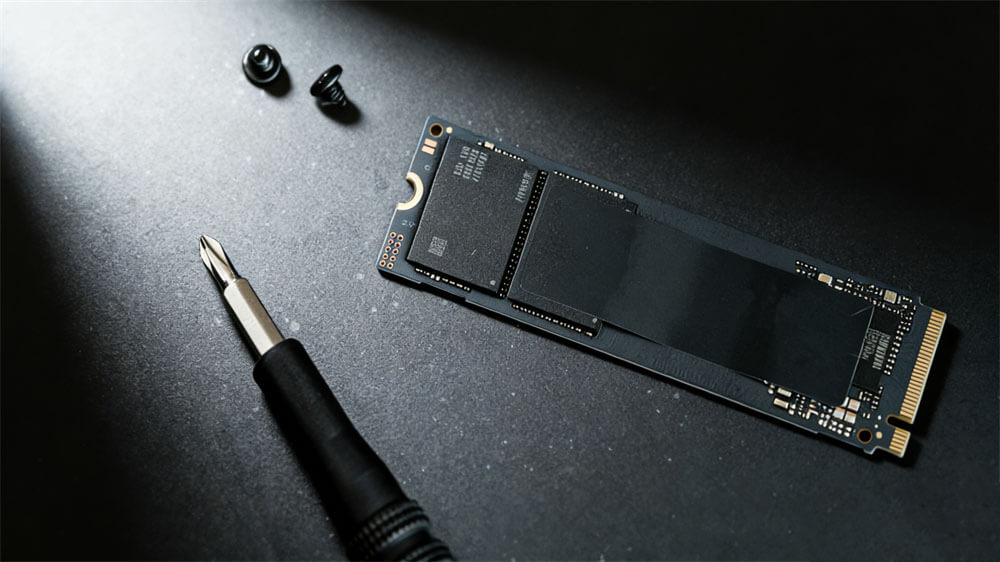
SSD enclosures serve as protective casings that convert internal storage drives—solid-state drives (SSDs)—into external, USB-connected devices. These enclosures support high-speed data transfer, often via USB 3.1 or Thunderbolt interfaces, making them ideal for data migration, backups, or on-the-go storage. Common form factors include 2.5-inch SATA for SSDs, as well as M.2 for NVMe or SATA SSDs. Compatibility is key; mismatches in interface (e.g., SATA vs. PCIe) can lead to failures. Enclosures vary in build quality, with aluminum models offering better heat dissipation for sustained performance.
Benefits and Applications of SSD Enclosure
Beyond basic storage, SSD enclosures excel in speed (faster than HDDs due to no moving parts), durability (shock-resistant), and portability (compact and lightweight). They consume less power, operate silently, and offer lower latency for tasks like gaming or data migration. Applications include:
Data Backups: Reliable for archiving without mechanical failure risks.
Repurposing Drives: Convert old internal SSDs into externals, extending hardware life.
Professional Workflows: High-speed models handle 4K video editing seamlessly.
Gaming: Reduce load times when used as external storage for consoles or PCs.
Step-by-Step Installation Guide
The installation process varies by enclosure type, but core principles remain consistent: open, insert, secure, and close. Below, detailed steps for the three common opening mechanisms are outlined.
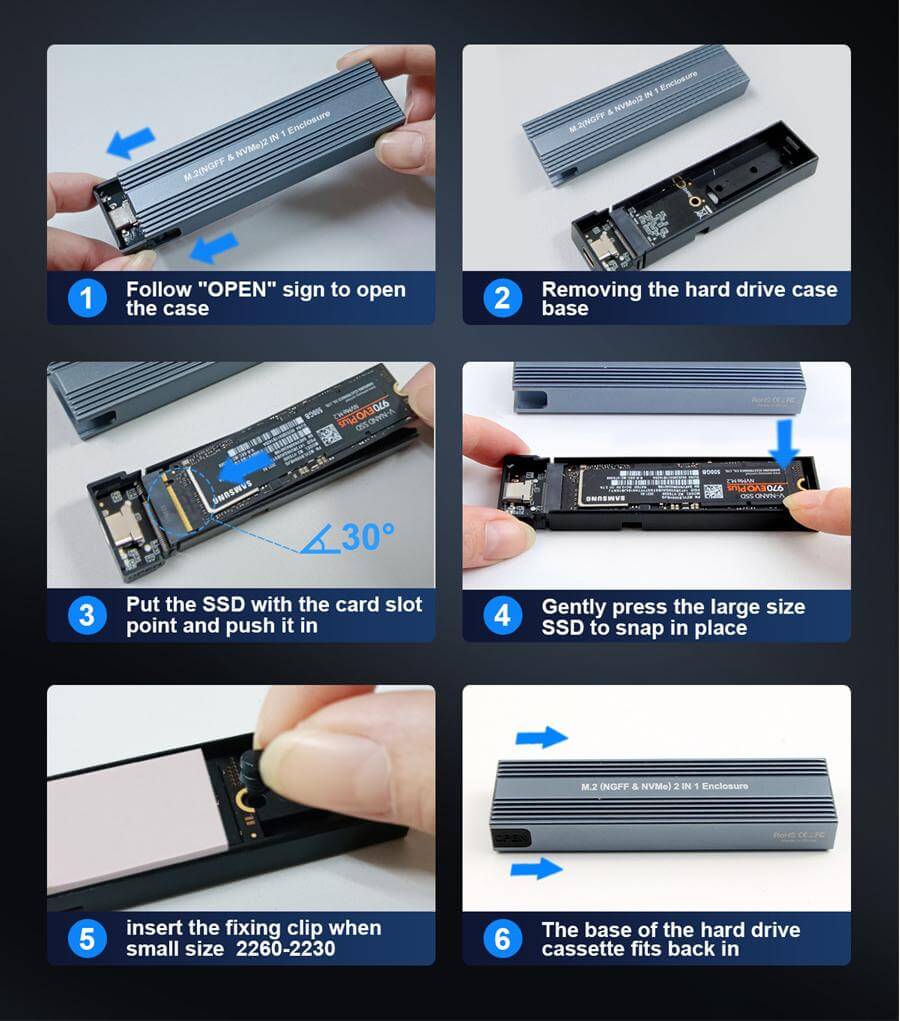
Pull-Out Type Enclosure:
Press and hold the latch to slide out the inner tray.
Align the SSD's ports (narrow data and wide power for SATA) with the tray's socket.
Gently push the drive into place, ensuring it seats flat without strain.
Slide the tray back into the outer casing until it clicks.
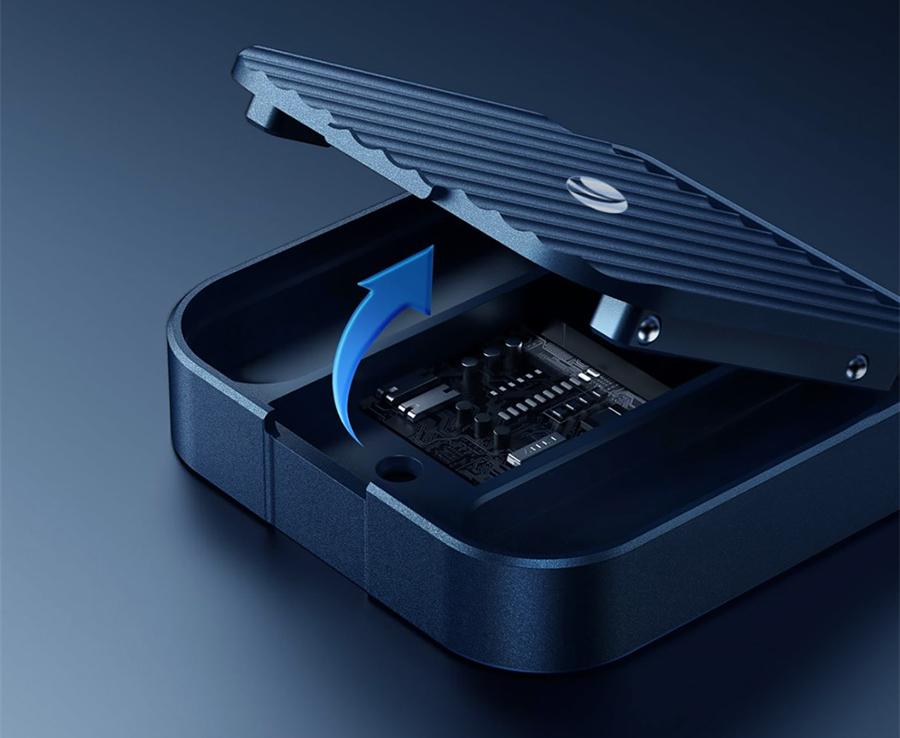
Flip-Top Type Enclosure:
Lift the top cover to access the inner tray.
Position the SSD onto the slot, aligning the connectors.
Press down firmly but carefully to connect.
Insert the cover's pins into the corresponding holes and snap the cover closed.
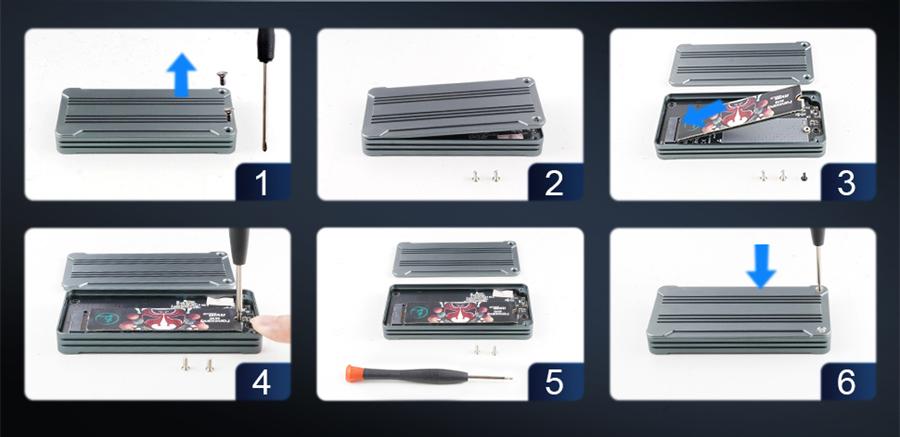
Screw-Lock Type Enclosure:
Use a screwdriver to remove the screws (usually two on the bottom or side).
Open the top cover or slide out the tray.
Install the SSD by aligning and seating it in the slot.
Close the cover and tighten the screws securely.
For M.2-specific installations, additional steps may include applying thermal pads to prevent overheating.
Connecting and Formatting the Drive
Once assembled:
Connect the enclosure to a PC via USB.
Open Disk Management (right-click Start menu on Windows).
If the drive appears as unallocated, create a new simple volume, assign a drive letter, and format (NTFS recommended).
For macOS, use Disk Utility to format as APFS or exFAT for cross-platform use.
This step ensures the drive is recognized and ready for data transfer.
Troubleshooting Common Issues
Encounter problems? Common resolutions include:
Drive Not Detected: Check connections, try another USB port or cable, or test on a different PC.
Overheating: Ensure thermal pads are applied for NVMe drives; avoid prolonged high-load use.
Compatibility Errors: Verify drive form factor and interface; reformat if needed (back up data first).
Slow Speeds: Confirm USB version (e.g., 3.1 for optimal performance).
If issues persist, consult the manufacturer's support.
VCOM, as a professional external storage device brand and manufacturer, provides different types of SSD enclosures.
Pull-Out Type SSD Enclosure: VCOM 850SN
Flip-Top Type SSD Enclosure: VCOM 853SN
Screw-Lock Type SSD Enclosure: VCOM 874N
Tag:SSD,SSD Enclosure