
Yes, two wireless routers can be connected to a single optical modem. Still, the correct setup depends on how the optical modem is configured and what the network is expected to achieve. In many fiber broadband homes, the optical modem is not just a signal converter. It may also work as a router, DHCP server, firewall, and Wi-Fi access device. This is why connecting two routers without planning often leads to IP conflicts, unstable Wi-Fi, Double NAT, slow device discovery, or gaming and VPN issues.
A well-designed network should have one clear routing layer and one or more Wi-Fi access layers. For most homes and small offices, the best practice is simple: let one device handle routing, and configure additional routers as access points. This structure improves coverage without making the network unnecessarily complex.
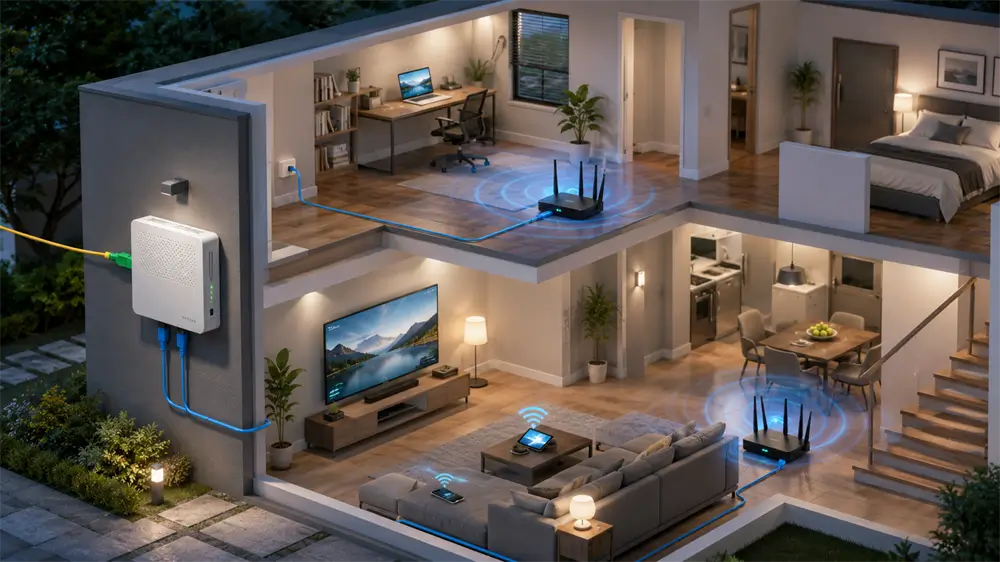
What Does the Optical Modem Do?
An optical modem, also called an ONT or ONU in fiber-to-the-home networks, converts the optical signal from the ISP into an Ethernet signal that home network devices can use. However, many ISP-supplied optical modems are combined gateway devices. They may include LAN ports, Wi-Fi, NAT, DHCP, and firewall functions.
There are two common working modes.
In router mode, the optical modem assigns private IP addresses to connected devices and manages internet sharing. This is convenient for ordinary users because computers, phones, smart TVs, and routers can access the internet directly through the modem.
In bridge mode, the optical modem only passes the internet connection through to another router. The external router then handles PPPoE dialing, DHCP, NAT, firewall rules, parental control, VPN, and Wi-Fi management. This mode is often preferred when using a more powerful third-party router.
Understanding this difference is the key to deciding how two wireless routers should be connected.
Can Two Routers Connect Directly to One Optical Modem?
Technically, yes. If the optical modem has multiple active LAN ports, two wireless routers can be connected to it through Ethernet cables. However, this does not always mean it is the best configuration.
Some ISP optical modems only activate one LAN port for internet access. Other LAN ports may be reserved for IPTV, VoIP, or specific services. In addition, if both wireless routers are left in default router mode, each router may create its own separate private network. Devices connected to Router A may not communicate properly with devices connected to Router B.
For example, a laptop on one router may fail to find a printer, NAS, smart TV, or screen-casting device on the other router. This is not usually a cable problem; it is a network segmentation problem.
Best Method 1: Optical Modem in Router Mode + Two Routers in AP Mode
This is the most suitable setup for many households. In this layout, the optical modem remains the main gateway. It handles DHCP, NAT, and internet access. The two wireless routers are configured in Access Point mode.
The topology is:
Optical modem LAN port → Router 1 in AP mode
Optical modem LAN port → Router 2 in AP mode
In AP mode, the wireless routers no longer perform routing or NAT. They simply provide Wi-Fi coverage and Ethernet expansion. All devices stay in the same local network, making it easier for phones, computers, printers, smart TVs, and IoT devices to communicate.
This method is ideal for homes with multiple rooms, small offices, or shops that need better Wi-Fi coverage without advanced network management. For stable performance, wired Ethernet backhaul is strongly recommended. A quality Cat6 or Cat6A cable, such as those from VCOM’s networking cable range, helps maintain stable gigabit transmission between the optical modem and access points.
Best Method 2: Optical Modem in Bridge Mode + One Main Router + Second Router as AP
This is often the cleanest setup for users who want better performance and more control. In this layout, the optical modem is switched to bridge mode, and one main router serves as the network's central hub.
The topology is:
Optical modem in bridge mode → Main router WAN port → Second router in AP mode
The main router handles authentication, routing, DHCP, firewall, QoS, and Wi-Fi management. The second router only extends wireless coverage. This avoids Double NAT and gives the main router full control of the network.
This setup is recommended for gaming users, remote workers, larger homes, and small offices that rely on stable video meetings, VPN access, NAS storage, or smart home systems. If more wired ports are required, a gigabit network switch can be added behind the main router instead of forcing multiple routers to work independently.
Method 3: Two Routers Both in Router Mode
This setup can work, but it should be used carefully. When two routers both run in router mode, each one creates its own subnet. If Router 2 is connected behind Router 1 through its WAN port, the network may experience Double NAT. If both routers are connected directly behind the optical modem, the network may become fragmented depending on the modem’s configuration.
Double NAT may not stop basic web browsing, but it can cause problems for online gaming, port forwarding, remote desktop access, VPN tunnels, IP cameras, and certain smart home functions. Device discovery may also become unreliable.
There are cases where two routers in router mode make sense. For example, a landlord may want to separate tenant devices from the main home network. A small business may want to isolate guest Wi-Fi from office computers. In these cases, separation is intentional. For ordinary home coverage extension, however, AP mode is usually better.
Same Wi-Fi Name or Different Wi-Fi Names?
Both options are possible. Using the same SSID and password on both routers can create a smoother roaming experience, especially when the routers are connected by Ethernet and configured as access points. Devices can move between rooms and reconnect to the stronger signal.
Using different Wi-Fi names makes troubleshooting easier. For example, “Home-WiFi-1F” and “Home-WiFi-2F” allow users to manually choose the nearest router. This is useful when routers do not support seamless roaming or when signal overlap is poorly controlled.
For 2.4GHz Wi-Fi, avoid overlapping channels where possible. Channels 1, 6, and 11 are commonly used because they reduce interference. For 5GHz or 6GHz networks, channel selection should consider nearby routers, wall penetration, and device compatibility.
Wired Backhaul Is Better Than Wireless Repeating
A second router can sometimes connect wirelessly to the first router using bridge, repeater, or WDS mode. This is convenient when no Ethernet cable is available. However, wireless repeating usually reduces available bandwidth and increases latency because the router must receive and retransmit data over Wi-Fi.
For stable work, gaming, streaming, and video meetings, Ethernet backhaul is the better option. A wired link between routers gives the access point a stronger and cleaner connection to the main network. In larger houses or office renovations, installing high-quality Ethernet cables is often more reliable than relying only on wireless extension.
Common Setup Mistakes to Avoid
The first common mistake is leaving DHCP enabled on every router. In a single LAN, normally only one device should assign IP addresses. If multiple DHCP servers operate at the same time, devices may receive incorrect gateway information.
The second mistake is using the wrong port. When a router works as an AP, some models require the uplink cable to connect to the LAN port, while others allow the WAN port to be used in AP mode. The router manual should be checked.
The third mistake is using damaged or low-grade cables. Poor cables can cause speed drops, packet loss, and unstable negotiation between gigabit ports. For modern fiber broadband, Cat5e is the minimum practical choice, while Cat6 or Cat6A is more suitable for future-ready installations.
Tag:Wireless Routers