A VR headset may provide an immersive display, but the quality of the connection behind it is equally important. When a standalone headset is connected to a gaming PC, the VR cable must carry large amounts of visual, audio, tracking, and control data without frequent interruptions.
That makes choosing a VR link cable more complicated than finding a cable with the correct connector. Data speed, length, charging support, construction, computer performance, and headset compatibility can all affect the experience.
This guide explains what a VR cable does, which specifications matter, and how to select a dependable cable for PC VR gaming.
What Is a VR Cable?
A VR cable is a wired connection that transmits data, video, audio, or power between a virtual reality headset and another device. The exact function depends on the headset design.
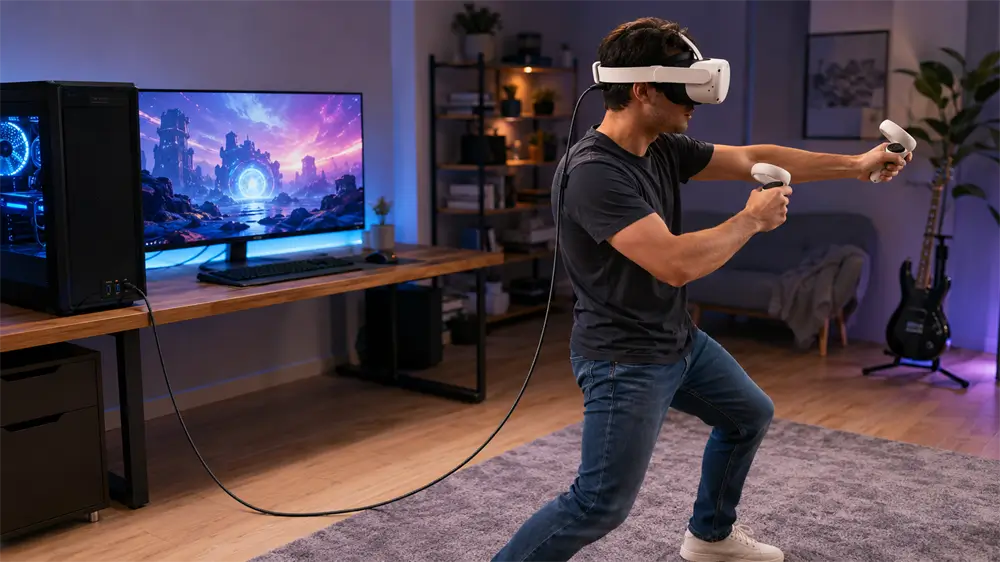
Dedicated PC VR headsets may use DisplayPort or HDMI for video alongside USB for tracking and power. Compatible standalone headsets can instead use a USB VR link cable to communicate with a gaming PC.
In the second setup, the computer renders the VR application and sends the resulting visual information to the headset through USB. The headset simultaneously returns tracking data and controller inputs to the PC.
A USB-C connector does not automatically make a cable suitable for this task. Some USB-C cables are designed mainly for charging and support only USB 2.0 data—or no data at all. A proper PC VR cable needs sufficient data bandwidth as well as reliable physical construction.
What Does a VR Link Cable Do?
A VR link cable allows a compatible standalone headset to access PC-powered VR games and applications. Instead of relying only on the headset’s internal processor, the system can use the gaming computer’s CPU and graphics card.
The cable carries compressed visual data from the PC while returning movement, tracking, controller, microphone, and other information from the headset. Because all these signals must travel continuously, an unstable connection can produce stuttering, disconnections, or failure to detect the headset.
A wired connection also avoids many variables associated with wireless PC VR, including router congestion, signal interference, distance, and network configuration. Wireless play provides greater freedom, but a cable is often preferable when predictable connectivity is the priority.
Meta states that Meta Horizon Link requires a high-quality USB cable capable of carrying both data and power. Its current guidance also recommends a cable of at least three meters for a comfortable experience.
How to Choose the Best VR Cable
Check the Data Speed
The most important distinction is whether the VR headset cable supports high-speed data. A charging cable may fit the headset perfectly while being unable to establish a PC VR connection.
USB 3.2 includes 5Gbps, 10Gbps, and 20Gbps performance levels. USB 3.2 Gen 1 operates at a signaling rate of up to 5Gbps, although real-world throughput will be lower because of protocol overhead and the capabilities of connected hardware. See the USB-IF USB 3.2 specification.
Match the Connectors to the PC
VR link cables commonly use either USB-C to USB-C or USB-A to USB-C connectors.
A USB-C to USB-C cable is appropriate when the gaming PC has a compatible high-speed USB-C port. A USB-A to USB-C VR cable is useful for desktop computers that provide high-speed USB-A ports but lack USB-C.
Connector shape alone does not reveal port performance. Check the computer or motherboard specifications and make sure the selected port supports the required USB data standard. A USB 2.0 port can restrict an otherwise capable cable.
Choose a Practical Length
A short charging cable may work for seated testing but can become restrictive during active gameplay. Standing, crouching, and turning require enough cable length to prevent constant pulling on the headset.
A five-meter VR cable offers substantially more movement than a typical one-meter cable. However, maintaining high-speed data over a long distance requires careful conductor design and shielding. Length should therefore be evaluated together with the cable’s stated data specification.
Understand Charging Support
Many VR cables carry power and data simultaneously, but charging support does not guarantee that the battery percentage will remain constant.
The available power depends on the computer’s USB port, cable design, headset power demand, and operating conditions. During graphically demanding gameplay, the headset may consume power faster than the USB port supplies it. The cable can slow battery drain without maintaining or increasing the charge level.
Look for Durable Construction
VR cables are repeatedly bent, twisted, stepped around, and pulled during normal use. Connector housings and the section of cable nearest the headset experience particularly high stress.
A flexible braided jacket, quality conductors, reinforced connector transitions, and metal connector housings can improve durability. The cable should remain flexible enough to follow movement without creating excessive drag on the headset.
Recommended VR Cable: VCOM CU414VA
For a gaming PC equipped with a high-speed USB-A port, the VCOM CU414VA USB-A to USB-C VR Cable provides a practical wired option.
The CU414VA is five meters long, giving users room for standing and room-scale movement. It supports USB 3.2 Gen 1 data transmission at up to 5Gbps and provides simultaneous charging and data synchronization.
Its pure-copper conductors are paired with a cotton-braided exterior and aluminum-alloy connector housings. These features address the signal and mechanical demands placed on a long cable during active VR sessions.
The CU414VA is for Oculus Quest 1 and Quest 2. Before purchasing, users should still confirm headset software support, PC hardware requirements, USB port performance, and compatibility with the intended VR platform. Product compatibility does not compensate for an unsupported graphics card or underpowered computer.
How to Connect a VR Headset to a PC
First, confirm that the computer meets the headset platform’s processor, graphics, memory, operating-system, and USB requirements. Install and update the required PC VR software.
Connect the USB-A end of the cable directly to a suitable USB 3 port on the computer, then insert the USB-C end into the headset. Avoid unverified hubs, adapters, and extension cables during the initial setup because each additional component can introduce a compatibility problem.
Open the headset software and approve the PC connection inside the headset. Route the cable along the headset strap and secure it with a reusable tie, leaving enough slack for comfortable head movement. This reduces leverage on the headset’s USB-C port.
Common VR Cable Problems
If the PC does not detect the headset, reconnect both ends, try another verified high-speed USB port, restart the headset software, and update the headset and computer drivers.
For intermittent disconnections, remove unnecessary adapters and inspect the connectors for looseness or damage. Secure the VR cable to the headset strap so movement does not pull directly on the port.
Poor image quality or stuttering does not always indicate a faulty cable. GPU performance, rendering resolution, background applications, software settings, and the selected USB port can all affect PC VR performance.
If the headset battery continues to drain, check the power output of the computer’s USB port. Data compatibility and sufficient charging power are separate considerations.
Wired VR Cable vs. Wireless PC VR
A wired VR link cable usually provides a more predictable connection because it does not depend on Wi-Fi quality. It is well suited to long gaming sessions, seated simulation, and rooms with congested wireless networks.
Wireless PC VR removes the physical cable and offers greater freedom of movement, but performance depends on router quality, signal strength, network traffic, and room layout. The better choice depends on whether connection consistency or unrestricted movement is more important.
Frequently Asked Questions
Can Any USB-C Cable Be Used for VR?
No. The cable must support the data rate required by the headset platform. Many USB-C charging cables lack adequate high-speed data support.
Is 5Gbps Fast Enough for a VR Link Cable?
A 5Gbps USB connection meets the performance class specified in Meta’s current Link setup guidance. Successful operation still depends on the headset, cable, USB port, PC hardware, and software working together.
Does a VR Cable Improve Graphics?
The cable does not increase the headset’s native display resolution. It enables compatible PC hardware to render PC VR content and transmit it to the headset.
Tag:VR Cable