DisplayPort, often shortened to DP, is one of the most important video interfaces for modern PCs, gaming monitors, workstations, and graphics cards. It supports high-resolution, high-refresh-rate, adaptive-sync, multi-monitor configurations, and professional display performance. However, when a DisplayPort cable is not working properly, the symptoms can be confusing: no signal, a random black screen, flickering, low refresh rate, the wrong resolution, washed-out colors, or a monitor that is detected but refuses to display correctly.
A single factor does not cause most DP display problems. The root cause may be the cable, monitor input setting, graphics driver, GPU output port, monitor firmware, DP version mismatch, or an adapter that cannot handle the required bandwidth. A structured troubleshooting process helps identify the problem quickly and avoids unnecessary product replacement.
Common DisplayPort Cable Problems
The most common DP cable issues include:
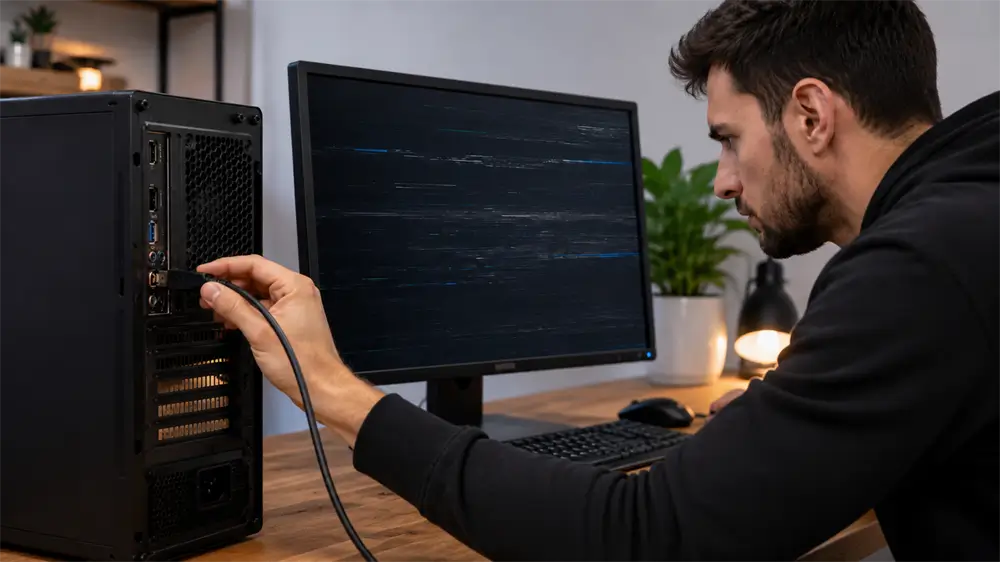
No signal or monitor was detected. The monitor may show “No Signal,” “No Input,” or remain in standby mode even when the computer is running.
Screen flickering or a random black screen. The display may flash, turn black for one or two seconds, or lose signal during gaming, video playback, or high-refresh-rate use.
Wrong resolution. A 2K, 4K, or ultrawide monitor may be limited to a lower resolution, causing blurry text, stretched images, or an incorrect aspect ratio.
Refresh rate limitation. A 144Hz, 165Hz, 240Hz, or 4K high-refresh monitor may only show 60Hz or a lower-than-expected option.
Color abnormality. The screen may appear washed out, too dark, overly saturated, or display an incorrect color range due to driver, HDR, or output format settings.
Step 1: Check the Physical Connection First
The first step is always the simplest: inspect the physical connection. DisplayPort connectors usually fit firmly into the port, and many full-size DP connectors include a locking latch. If the connector is not fully inserted, the display may work intermittently or fail to detect the signal.
Turn off the monitor and computer, unplug both ends of the DP cable, then reconnect them firmly. Check whether the monitor is set to the correct input source, especially if it has HDMI, USB-C, and multiple DP inputs.
Next, inspect the cable. Sharp bending, pressure damage, worn connectors, or a loose locking clip can cause unstable signal transmission. DisplayPort carries high-speed digital signals, so a cable that looks slightly damaged may still cause severe flicker or black screen issues. If possible, test with another known-good DP cable. This single test often separates cable failure from monitor or GPU problems.
Step 2: Match the DP Cable to Resolution and Refresh Rate
Not every DP cable can support every display mode. A basic cable may work at 1080p or 4K60 but fail at 4K144, 2K240, ultrawide high refresh rate, or HDR output.
For older systems, DisplayPort 1.2 is often sufficient for 4K at 60Hz or high-refresh 1080p. DisplayPort 1.4 is commonly used for 4K high-refresh displays, HDR, and Display Stream Compression. For the latest high-end gaming monitors and professional displays, DisplayPort 2.1 and certified DP40 or DP80 cables are more relevant.
Cable certification matters because DisplayPort performance depends on stable bandwidth. DP40 cables target up to 40Gbps throughput, while DP80 cables target up to 80Gbps throughput. For users building a high-performance gaming or workstation setup, choosing a certified cable from a reliable brand such as VCOM can reduce the risk of black screen, signal dropouts, and missing refresh-rate options.
Step 3: Adjust Windows Display Settings
If the monitor is detected but the image looks wrong, check the display settings. On Windows, open Settings > System > Display > Advanced display and select the correct monitor. Confirm that the resolution matches the monitor’s native resolution. Then select the highest supported refresh rate.
For multi-monitor setups, press Windows + P and choose the correct mode: Duplicate, Extend, or Second Screen Only. Many users mistake a display-mode setting for a cable problem. If the monitor is connected but not showing the desktop, the system may simply be in the wrong projection mode.
If the screen flickers at the highest refresh rate, temporarily lower the refresh rate to 60Hz or 120Hz. If the display becomes stable, the issue may be related to cable bandwidth, GPU compatibility, or monitor firmware rather than the panel itself.
Step 4: Update or Roll Back the Graphics Driver
Graphics drivers directly affect DisplayPort output. An outdated, corrupted, or recently updated driver can cause no signal, a black screen, missing refresh rates, HDR problems, and incorrect color output.
For NVIDIA, AMD, or Intel graphics, download the driver from the official GPU manufacturer or the laptop manufacturer’s support page. After installation, restart the computer and test the monitor again. If the problem started immediately after a driver update, rolling back to the previous stable driver may solve the issue.
For persistent problems, uninstalling and reinstalling the display driver can help. On Windows, Device Manager can be used to remove the display adapter driver and install a fresh version. For gaming PCs and professional workstations, keeping GPU drivers stable is often more important than installing every new release immediately.
Step 5: Check Hardware Compatibility and Adapters
DisplayPort is usually most stable when connected directly from the GPU to the monitor. Adapters can introduce limitations. A DP-to-HDMI adapter, USB-C-to-DP adapter, docking station, or KVM switch may reduce bandwidth or fail to support high refresh rates, HDR, adaptive sync, or multi-monitor functions.
If a DP connection fails through an adapter, test a direct DP-to-DP connection. If the direct connection works, the adapter or dock is likely the bottleneck. For USB-C devices, confirm that the USB-C port supports DisplayPort Alt Mode or Thunderbolt video output. Some USB-C ports only support charging and data, not video.
Multi-monitor setups also require attention. A graphics card may have enough ports but still have limits on total resolution, refresh rate, or bandwidth. Configure each display individually in the GPU control panel and reduce refresh rates temporarily when diagnosing unstable output.
Advanced Fixes for Stubborn DP Issues
If basic steps fail, check the monitor firmware and GPU firmware. Some display issues are fixed through firmware updates released by the monitor or graphics card manufacturer. Also check BIOS settings on desktop PCs, especially when using integrated graphics, dedicated graphics, or multiple display outputs.
Cable length is another important factor. Long passive DP cables are more likely to suffer from signal loss at high bandwidth. For high-resolution and high-refresh-rate displays, shorter certified cables are generally more reliable. For longer DP 2.1 UHBR20 connections, active low-loss cable designs are becoming more important.
HDCP, HDR, DSC, and adaptive sync settings can also affect compatibility. If a flickering or black screen appears only during HDR gaming or protected video playback, test with HDR or adaptive sync disabled. This helps confirm whether the issue is bandwidth-related or caused by feature negotiation between the GPU and monitor.
How to Choose a Reliable DisplayPort Cable
A good DP cable should match the monitor’s required resolution and refresh rate, use stable shielding, fit securely into the port, and come from a manufacturer with reliable quality control. For office use, a dependable DP 1.4 cable may be enough. For 4K high refresh rate, ultrawide gaming, or future-facing DP 2.1 setups, certified higher-bandwidth cables are the safer choice.
VCOM DisplayPort cables are designed for stable video transmission across office, gaming, and professional display scenarios. For users troubleshooting repeated DP no signal or flickering issues, replacing a low-quality cable with a well-built, specification-matched cable is often the most cost-effective fix.
FAQ
Why does my DisplayPort monitor say no signal?
The most common causes are a loose cable, a wrong input source, a faulty DP cable, a disabled display mode, an outdated GPU driver, or a DP version mismatch.
Why does my DisplayPort screen flicker?
Flicker can result from unstable cable bandwidth, a damaged cable, high refresh rate instability, GPU driver problems, adapter limitations, or monitor firmware issues.
Why can’t my monitor reach 144Hz or 240Hz over DP?
The cable, GPU, monitor, or adapter may not support the required bandwidth. Check the monitor’s native refresh rate, use Advanced Display settings, and test with a higher-quality DP cable.
Is DisplayPort better than HDMI for PC monitors?
For many PC gaming and workstation monitors, DisplayPort is often preferred because it commonly supports high refresh rates, adaptive sync, and multi-monitor configurations. HDMI may be more convenient for TVs and home theater devices.
Should a DP cable be replaced first when troubleshooting?
Yes. Testing with a known-good cable is one of the fastest ways to identify whether the issue comes from the cable or from the monitor, GPU, or software configuration.
Tag:DisplayPort Cable