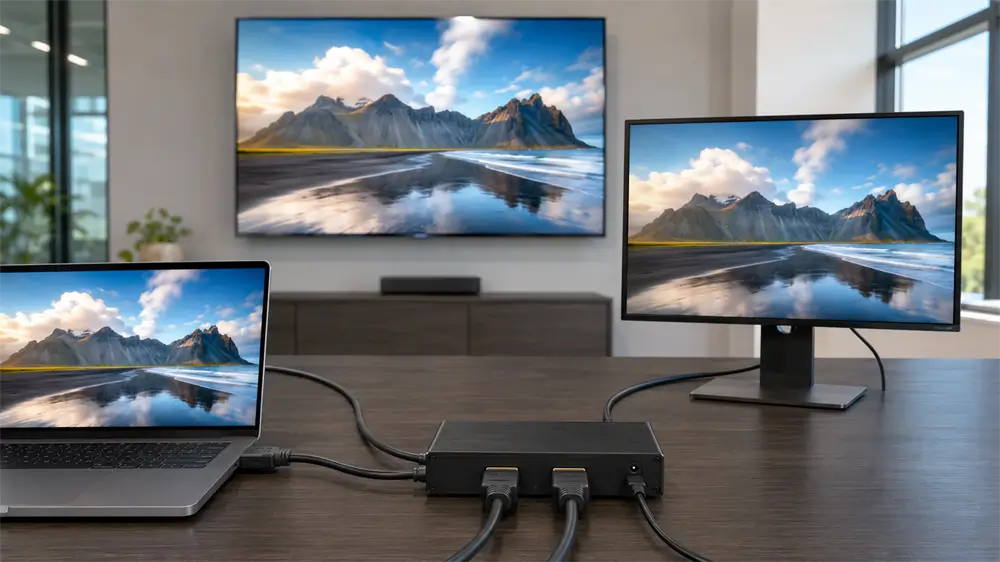
An HDMI splitter takes the digital audio and video signal from one source device and sends matching copies to two or more displays. It can connect a media player to several televisions, mirror a presentation across multiple screens, or route a game console to both a monitor and a capture device.
Although the basic function sounds simple, modern HDMI splitting involves more than dividing a cable connection. The splitter must reproduce the signal, communicate with every connected display, manage content protection, and select a video format that the entire system can support.
What Is an HDMI Splitter?
An HDMI splitter is a distribution device with one HDMI input and multiple HDMI outputs. A source such as a computer, streaming box, Blu-ray player, or game console connects to the input. Televisions, monitors, projectors, and capture devices connect to the outputs.
Splitter configurations are normally written as:
1×2: one source distributed to two displays
1×4: one source distributed to four displays
1×8: one source distributed to eight displays
Every connected screen normally shows the same content. A standard splitter does not create separate desktop workspaces or allow each display to show a different application.
How Does an HDMI Splitter Work?
The process begins when the source sends a digital HDMI signal to the splitter’s input. Internal circuitry receives and processes that signal before generating a separate output signal for each connected display.
Unlike an unpowered cable adapter, an active HDMI splitter can equalize, regenerate, and distribute the signal. Each output establishes its own connection with the attached display, helping compensate for signal losses introduced by connectors, cables, and multiple destinations.
The result is not one signal being weakened by division. It is multiple reconstructed HDMI signals carrying the same video and audio content.
Why Do Most HDMI Splitters Require Power?
Reliable HDMI distribution requires active electronics. External power allows the splitter to operate its signal-processing circuitry, maintain communication with the source and displays, and drive several HDMI outputs simultaneously.
A passive HDMI splitter cable may appear suitable for simple applications, but it cannot reliably reproduce the high-speed digital signal or manage HDMI handshakes between multiple devices. Powered models are generally required for 4K video, HDR, longer cables, high refresh rates, and commercial multi-display installations.
How EDID Affects HDMI Splitter Performance
EDID, or Extended Display Identification Data, tells the source what a display supports. This information can include resolution, refresh rate, HDR capability, color format, and audio configuration.
With several displays connected, the splitter must decide which EDID information to report to the source. Common strategies include using the capabilities of the display on Output 1, selecting a format supported by every display, or allowing manual EDID selection.
For example, connecting a 4K television and a 1080p projector may cause both outputs to run at 1080p. This happens when the splitter selects the lowest common format to keep both displays active. Other models may output 4K based on the first display, leaving the 1080p device unable to show an image unless the splitter includes downscaling.
Advanced EDID controls are therefore valuable in mixed-display systems.
What Role Does HDCP Play?
HDCP is a content-protection system used by streaming platforms, Blu-ray players, set-top boxes, and other protected sources. When an HDMI splitter is introduced, the source must authenticate the complete signal chain.
The source, splitter, and displays must support compatible HDCP standards. If one component fails authentication, the result may be a black screen, an error message, reduced resolution, or video that works in menus but disappears when protected content begins.
A legitimate HDMI splitter repeats protected content only after completing the required authentication. It should not be purchased or promoted as a method of bypassing HDCP.
Does an HDMI Splitter Reduce Picture or Sound Quality?
A correctly specified splitter should not visibly reduce image or audio quality. Because HDMI is digital, a compatible output normally remains identical to the source. Problems appear when a device exceeds the splitter’s bandwidth or compatibility limits.
Important factors include the resolution, refresh rate, color depth, HDR format, audio format, cable length, and capabilities of the least-compatible display. A splitter that supports 4K at 30Hz cannot deliver 4K at 60Hz simply because the source and television support it.
Current HDMI systems can involve substantially different bandwidth requirements. The official HDMI specification overview demonstrates why buyers should verify actual supported formats and bandwidth instead of relying only on a version number.
Basic distribution adds no meaningful input lag. However, splitters with scaling, format conversion, or advanced image processing may introduce a small amount of latency.
HDMI Splitter vs. HDMI Switch
An HDMI splitter and an HDMI switch perform opposite jobs.
An HDMI splitter sends one source to multiple displays. An HDMI switch connects multiple sources to one display, allowing the user to select between a console, computer, streaming player, and other devices.
Neither device automatically creates an extended desktop. Users who need different computer applications on separate screens require multiple independent graphics outputs, a compatible docking station, or another multi-display solution.
How to Connect an HDMI Splitter
First, connect the source device to the splitter’s HDMI input. Connect each television, monitor, or projector to a separate HDMI output, then attach the splitter’s power adapter.
Select the correct input on every display and turn on the system. If no picture appears, restart the displays, splitter, and source to repeat the HDMI handshake. For models with an EDID switch, select a suitable preset or place the preferred display on Output 1.
Common HDMI Splitter Problems
If one display shows no signal, exchange its cable or output connection with a working one. This quickly identifies whether the fault follows the screen, cable, or splitter port.
If all displays drop to 1080p, check for a lower-resolution screen and review the splitter’s EDID behavior. A 4K and 1080p combination may require a splitter with independent downscaling.
Flickering or intermittent black screens commonly indicate insufficient bandwidth, excessive cable length, unstable power, or poor connector contact. For 4K, HDR, and high-refresh-rate applications, every cable and device in the chain must support the required signal format.
How to Choose the Right HDMI Splitter
Choose a model according to the number of outputs and the exact video format required. Check maximum resolution, refresh rate, bandwidth, HDR support, HDCP compatibility, audio formats, EDID controls, and downscaling capability.
For demanding installations, a powered splitter with strong signal management and clearly documented specifications is more dependable than an inexpensive passive adapter.
Frequently Asked Questions
Can an HDMI splitter extend two monitors?
No. It mirrors the same image. An extended desktop requires independent video outputs or a dedicated multi-monitor solution.
Can a 4K splitter work with a 1080p television?
Usually, but output behavior depends on EDID management and whether the splitter supports downscaling.
Does an HDMI splitter carry audio?
Yes. HDMI audio is duplicated with the video, although the selected format may be limited by the least-capable connected device.
Is an HDMI splitter bidirectional?
Normally not. Its input and outputs have fixed signal directions unless the manufacturer explicitly states otherwise.
Tag:HDMI Splitter