
Connecting a laptop to a meeting-room projector or sharing a smartphone screen on a television should not require a long cable across the floor. A wireless HDMI display adapter solves this problem by transmitting video and audio from a source device to an HDMI display without a direct HDMI cable between them.
These adapters are widely used for presentations, classroom teaching, home entertainment, exhibitions, and portable workstations. However, resolution, latency, range, and connection type vary considerably. Choosing the right model requires more than checking whether “wireless HDMI” appears on the package.
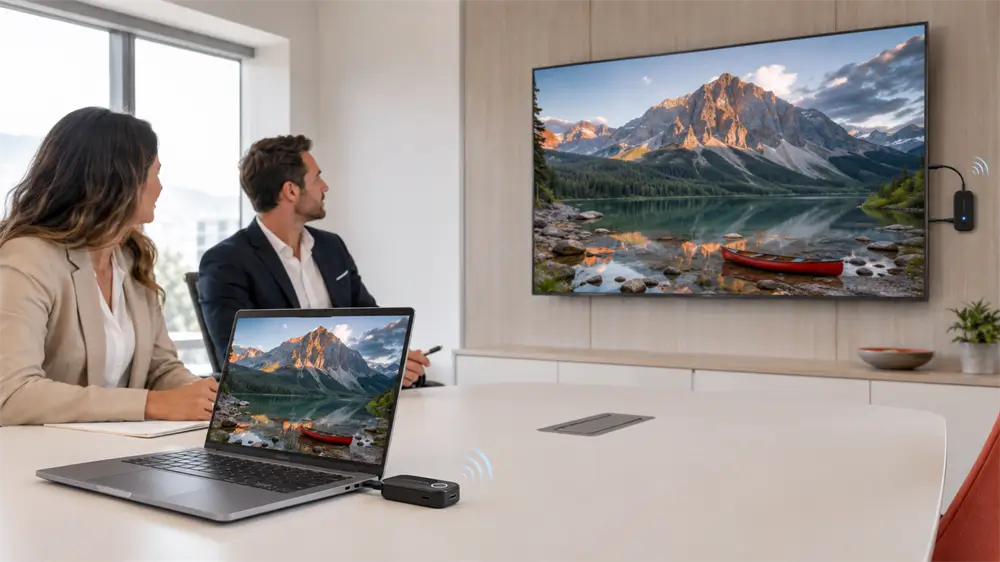
What Is a Wireless HDMI Display Adapter?
A wireless HDMI display adapter is a device that sends video and audio wirelessly to a television, monitor, projector, or LED display. HDMI is still used at the display or source connection; it is the distance between the devices that becomes wireless.
Products in this category generally use one of two designs. Protocol-based receivers accept content through technologies such as Miracast or AirPlay. A transmitter-and-receiver kit instead creates a dedicated wireless link. The transmitter connects to an HDMI or USB-C source, while the receiver connects to the display’s HDMI input.
Dedicated kits are particularly useful in business environments because they usually require no local network, account login, or complicated application setup.
How Does a Wireless HDMI Display Adapter Work?
The transmitter first receives video and audio from the laptop, tablet, media player, or smartphone. It then encodes the signal using a format such as H.264 or H.265 so that the large amount of audiovisual data can travel efficiently over a wireless connection.
The encoded stream is transmitted through a 2.4GHz or 5GHz wireless link. At the display end, the receiver decodes the stream and sends it through HDMI to the television, monitor, or projector.
This processing introduces some latency. For slides, spreadsheets, teaching materials, and general video playback, a short delay is usually acceptable. Competitive gaming, live performance monitoring, and other timing-sensitive applications remain better suited to a wired HDMI cable.
Wireless HDMI Adapter vs. HDMI Cable
A conventional HDMI cable generally provides the most stable connection, consistent image quality, and lowest possible latency. It is the preferred choice when the source and display remain permanently installed within practical cable distance.
A wireless HDMI display adapter offers greater flexibility. Presenters can move around a room, meeting tables remain free of long cables, and displays can be installed where routing HDMI cable would be inconvenient or expensive.
The trade-off is that wireless performance depends on distance, obstacles, radio interference, and signal processing. Walls, metal cabinets, crowded Wi-Fi channels, and poor receiver placement can reduce the effective range. Published distances should therefore be treated as open-space maximums rather than guaranteed indoor coverage.
Key Features to Check Before Buying
Resolution and Refresh Rate
For office presentations and most classroom content, 1080p at 60Hz provides smooth motion and sharp text. A 4K wireless HDMI adapter can show more detail, but 4K at 30Hz may appear less fluid when scrolling or moving windows than 1080p at 60Hz.
The source, adapter, HDMI cable, and display must all support the selected output format. The final result is always limited by the least capable component.
Transmission Distance and Latency
Choose the range according to the actual room rather than the straight-line measurement alone. A 50-metre open-space specification does not mean the signal will travel through several concrete walls at the same quality.
Latency is equally important. A delay of approximately 80–100ms works well for presentations and movies but may be noticeable during fast gaming or precise mouse interaction.
Source Connector and Compatibility
An HDMI transmitter works with laptops, desktop computers, cameras, media players, and other devices that provide HDMI output. A USB-C transmitter creates a cleaner connection for modern laptops and tablets, but the source port must support video output.
USB-C shape alone does not guarantee display capability. Most USB-C video accessories rely on DisplayPort Alt Mode, which allows DisplayPort video to travel through the USB-C connector. A charging-only or data-only USB-C port will not provide a video signal.
Mirroring and Extension Modes
Mirroring displays the same content on both screens and is convenient for videos, demonstrations, and teaching. Extension mode treats the external screen as a second workspace, allowing presentation slides to appear on the display while notes remain on the laptop.
Always confirm which modes are supported by both the adapter and the operating system.
Choosing a VCOM Screencast Series Solution
The VCOM Screencast Series provides different configurations for USB-C and HDMI source devices.
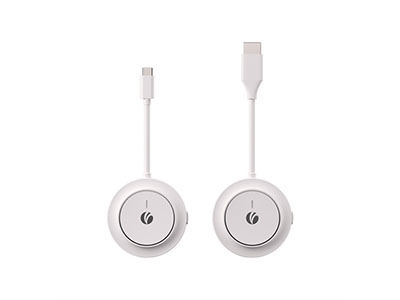
The VCOM DD543 4K Wireless HDMI Extender is designed for USB-C sources and supports resolutions up to 4K at 30Hz over 5GHz Wi-Fi. It offers mirroring and extension modes, a maximum specified distance of 30 metres, PD 3.0 charging support, and flexible one-to-many or many-to-one configurations. It is a strong option for high-resolution presentations, creative reviews, and modern USB-C workstations.
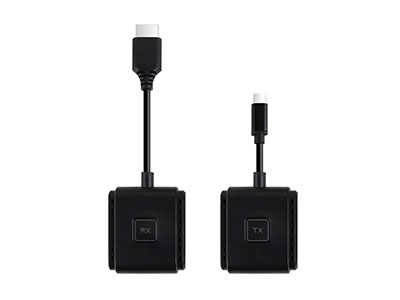
For conventional HDMI equipment, the VCOM DD544 Wireless HDMI Screencast Extender uses an HDMI transmitter and receiver. It supports 1080p at 60Hz, H.264 encoding, mirroring and extension modes, and transmission up to 50 metres in an open environment. Its specified latency is 80–100ms, making it suitable for conference rooms, classrooms, exhibitions, and home media playback.
The VCOM DD545-TC Wireless USB-C HDMI Extender combines a USB-C transmitter with dual-band 2.4GHz and 5GHz connectivity. It supports 1080p at 60Hz, up to 50 metres of open-space transmission, and 60W charging passthrough for compatible devices. This model is especially practical when a laptop or tablet must remain powered during a long presentation.
How to Set Up a Wireless HDMI Display Adapter
Connect the receiver to the display’s HDMI input and provide the required USB power. Select the corresponding HDMI source on the display, then connect the transmitter to the laptop, tablet, or media device. After pairing, choose mirroring or extension mode in the operating system’s display settings.
If no image appears, verify the HDMI input, power supply, source resolution, and transmitter connection. For USB-C models, confirm that the source port supports DisplayPort Alt Mode. Moving the receiver away from metal surfaces and nearby wireless equipment can also improve stability.
Frequently Asked Questions
Does wireless HDMI require internet access?
Not always. Dedicated transmitter-and-receiver systems can establish their own direct wireless connection without internet access or a router.
Can a wireless HDMI adapter transmit 4K?
Yes, but supported refresh rates vary. Some models provide 4K at 30Hz, while others prioritize smoother 1080p at 60Hz output.
Is wireless HDMI suitable for gaming?
It is suitable for casual games, but competitive gaming is better served by a wired connection because wireless encoding and transmission introduce latency.
Tag:Wireless HDMI Display Adapter


Related Products
 | |
| 4K Wireless HDMI Extender | |
 |  |
 | |
| Wireless HDMI Extender | |
| |
 | |
| 4K Wireless HDMI Extender | |
| |